

Frame
A frame shows an image in a border, with an optional caption, so a screenshot stands apart from the page. Readers can click it to see it full size, and press Escape to close it.
Example
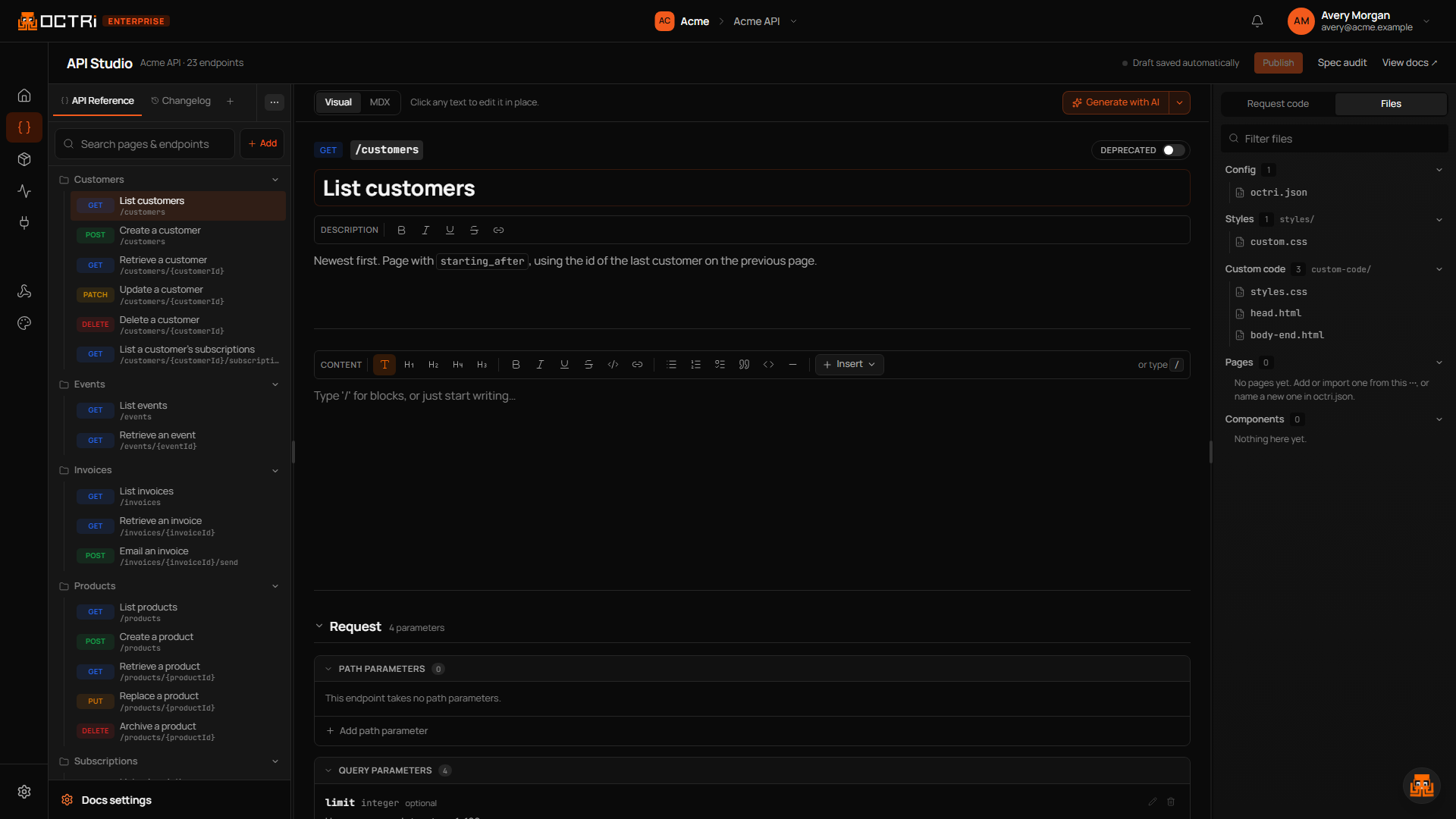
mdx
<Frame src="https://octri.dev/docs-assets/home/api-studio.webp" alt="API Studio with a guide open in the editor and its live preview beside it" caption="API Studio, with the preview beside the editor."></Frame>Props
srcstringrequiredThe image's URL. In the visual editor, upload the image instead and the URL is filled in for you. A frame with no src draws an empty frame, which is what the editor inserts before you choose an image.
altstringWhat the image shows, for screen readers, search engines and AI tools reading your docs. Describe the content, not that it's a screenshot.
captionstringA line of text under the image. Text between the tags is used as the caption too.
Other ways to add an image
<Image> is another name for Frame, and a plain Markdown image works anywhere, without the border or the zoom:
mdx
