What a Compromised VS Code Extension Could Do Before You Write a Line of Code
We monitored 40 VS Code launches to see what extensions do in the background. Prettier and GitLens both activated on startup, and GitLens started helper processes that opened outbound connections. Neither showed signs of compromise. Both show how much trust an editor extension holds.
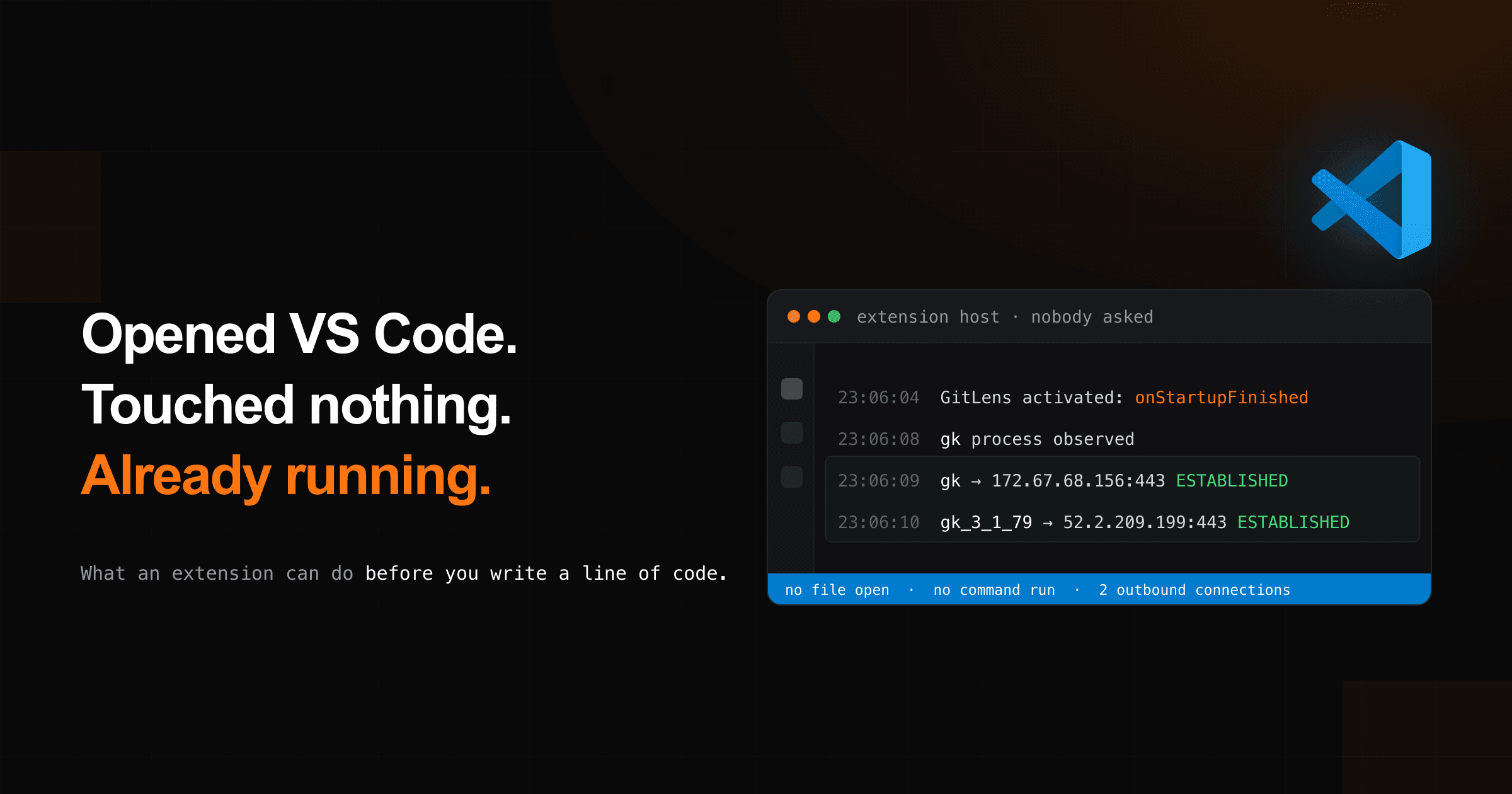
We monitored 40 VS Code launches to understand what extensions can do in the background. The results reveal an important security consideration hiding in plain sight: the amount of trust we place in the software running inside our development environments.
I opened VS Code on a Mac, loaded a small Git repository, and left the editor alone.
No terminal commands. No editing. No interaction with any extension.
A few seconds after startup, GitLens activated. Then a process named gk appeared. Two more processes followed, named gk_3_1_79.
The process monitor also recorded established outbound connections to remote servers.
Here's a short excerpt from the actual trace:
23:06:04.188  GitLens activated: onStartupFinished
23:06:08.514  gk process observed
23:06:09.529  gk -> 172.67.68.156:443 ESTABLISHED
23:06:10.083  gk_3_1_79 -> 52.2.209.199:443 ESTABLISHED
The repository contained three commits and a handful of small files. I hadn't asked GitLens to do anything.
Yet it was already running background processes and connecting to remote services.
Nothing about this observation indicates malicious behavior.
GitLens is an established developer tool, and GitKraken CLI is part of its documented integration ecosystem. The other extension we tested, Prettier, behaved as expected too. Neither showed evidence of compromise during our experiments.
That's worth establishing up front. This investigation isn't about exposing malicious behavior in popular extensions. We didn't conduct a comprehensive security audit, and we aren't claiming either extension has been independently certified as secure.
I was interested in something much more fundamental.
What happens if an attacker gains control of an extension that already has permission to execute code on your development machine?
Think about everything accessible to a typical developer workstation.
Private repositories. SSH keys. Environment files. Git credentials. Cloud authentication. Internal services. Sometimes production infrastructure.
We spend enormous amounts of time protecting these resources from malicious dependencies and compromised packages.
Meanwhile, we install editor extensions with a few clicks.
Some of them activate every time the editor starts.
I wanted to understand exactly what that means.
Your Editor Extensions Have Real Privileges
VS Code extensions are easy to underestimate.
They look like small features. A formatter, a Git integration, a syntax highlighter, perhaps something that adds a convenient shortcut.
But the VS Code extension system supports much more than interface customization.
According to Microsoft's extension runtime security documentation, extensions running in the desktop extension host have the same operating-system permissions as VS Code itself.
Depending on the environment, that can include access to the filesystem, network connections, and the ability to launch external programs.
Consider why those capabilities exist.
A debugger needs to start and control processes. A language server needs to inspect source files. Git tooling needs to execute commands. Some extensions integrate with services running outside the editor.
These are reasonable requirements.
The problem is what happens when the code exercising those permissions can no longer be trusted.
Suppose an attacker compromises an extension publisher's account or release pipeline. A malicious update reaches machines where the extension is already installed.
That code may inherit the privileges of the legitimate extension.
And it may begin executing before the developer does anything.
Extensions Don't Always Wait for You
VS Code extensions define activation events in their package.json manifests.
These events tell the editor when an extension should start.
Some extensions activate when you open a particular file type. Others activate when a workspace contains specific files, or when the user invokes a command.
One activation event is particularly interesting:
{
  "activationEvents": [
    "onStartupFinished"
  ]
}
VS Code emits onStartupFinished sometime after the editor starts.
An extension using this event can begin executing without a developer opening a file, using a feature, or clicking a button.
I inspected the manifests of ten familiar VS Code extensions.
Seven declared onStartupFinished:
- Prettier
- ESLint
- GitLens
- EditorConfig
- VSCodeVim
- Code Spell Checker
- Code Runner
Python, YAML, and rust-analyzer used language, workspace, and other conditional activation events without that declaration.
This was a deliberately selected sample. It doesn't establish how common startup activation is across the entire VS Code Marketplace.
It does establish an important property of the extension system.
An extension can run code automatically, and startup activation is an ordinary, documented part of the platform.
There's nothing suspicious about declaring onStartupFinished.
But if an attacker ever takes control of an extension that uses it, they may not need the developer to interact with the compromised code.
The editor opening could be enough.
Measuring What Happens
I wanted to see those capabilities in action.
So I built a small experiment around two popular, legitimate extensions: Prettier and GitLens.
Prettier formats source code. GitLens provides Git history, annotations, repository insights, and integrations with GitKraken services.
Both have good reasons to run code inside the development environment.
The experiments ran on an Apple Silicon Mac using macOS 27.0 and VS Code 1.144.x.
I tested Prettier 12.4.0 and GitLens 19.5.0 under four conditions:
- VS Code with no third-party extension and no workspace open.
- VS Code with the extension installed and no workspace open.
- VS Code opening a small TypeScript file or Git repository, without the extension.
- VS Code opening the same file or repository, with the extension installed.
Each condition was repeated five times.
That's 40 launches in total.
Every session ran for 90 seconds. A Python script sampled process information and established TCP connections every 0.5 seconds.
Each run used isolated user-data and extension directories. My usual VS Code extensions and settings weren't loaded.
The script recorded process IDs, resident memory usage, cumulative CPU time, and remote network endpoints.
I also collected extension-host logs to verify when each extension actually activated.
The TypeScript-file tests used Restricted Mode. GitLens was tested with a trusted repository so its normal repository features could operate.
These tests tell us what happened in a particular environment, with particular versions. They're useful observations, although they aren't a comprehensive analysis of the VS Code extension ecosystem.
The first interesting result was a false alarm.
Prettier and the 77 MiB That Didn't Belong to It
Prettier declares onStartupFinished.
The logs confirmed that it activated during every test where it was installed, including sessions where VS Code opened to an empty window.
At first, Prettier appeared to consume substantially more memory than expected.
Some captures also showed additional processes.
That seemed strange. The editor was sitting idle. No file was being formatted.
I looked at the individual processes and found a second Code Helper (Plugin) process occupying approximately 77 MiB of resident memory.
It was almost entirely idle.
It also wasn't Prettier.
It was VS Code's bundled Copilot Agent Host.
The service started during baseline sessions too, but the process discovery code captured it inconsistently.
During the Prettier experiment, the Agent Host was included in nine of the ten extension-enabled captures and none of their ten corresponding baseline captures.
Simply adding up process memory made the difference look like Prettier overhead.
Once I separated the Agent Host from the primary extension-host process, the results changed considerably.
| Scenario | Baseline | Prettier | Difference |
|---|---|---|---|
| Empty window | 198.9 MiB | 214.1 MiB | +15.2 MiB |
| TypeScript file open | 167.0 MiB | 185.2 MiB | +18.2 MiB |
Median of the mean primary extension-host RSS across five runs per condition.
Prettier added no identifiable process of its own.
The network samples also revealed no remote destination we could confidently attribute to Prettier.
It activated, initialized, and remained relatively quiet.
That's reassuring.
The apparent memory spike also illustrates an important lesson for anyone investigating security-sensitive behavior.
You need to know what you're measuring.
An unfamiliar process doesn't automatically indicate compromise. A remote connection doesn't prove that sensitive data was transmitted. Memory numbers are particularly easy to misinterpret when applications share libraries and run multiple helper processes.
Careful attribution is essential.
The Prettier investigation exposed a problem with our measurement approach, and correcting it improved the rest of the experiment.
Then I tested GitLens.
GitLens Demonstrated What Extensions Can Do
GitLens 19.5.0 also declares onStartupFinished.
It activated in every run where it was installed, including the five sessions with no workspace open.
Its presence was associated with a larger primary extension-host memory footprint.
| Scenario | Baseline | GitLens | Difference |
|---|---|---|---|
| Empty window | 199.0 MiB | 288.7 MiB | +89.7 MiB |
| Git repository open | 210.0 MiB | 297.8 MiB | +87.8 MiB |
Median of the mean primary extension-host RSS across five runs per condition.
The primary extension-host process used approximately 90 MiB more resident memory in the GitLens configurations.
These are process-level measurements. They don't tell us exactly how much memory GitLens itself allocated, and they shouldn't be interpreted as additional physical RAM consumption.
The process records were more revealing.
In every GitLens run, the sampler observed executables named gk or gk_3_1_79.
These correspond to GitKraken CLI, which GitLens integrates with.
None appeared in the ten matched extension-free control runs.
With no workspace open, the median number of distinct gk process IDs observed during a capture was one.
With a Git repository open, that median increased to five.
In one repository run, the sampler observed six distinct gk process IDs during the 90-second session.
Those processes weren't necessarily running at the same time. The number represents distinct process IDs observed over the entire recording period.
Their measured CPU consumption was low. The median cumulative CPU time attributed to the observed gk processes in repository runs was approximately 0.1 seconds.
This looked consistent with short background operations supporting GitLens functionality.
Again, nothing here indicates malicious behavior.
GitLens is designed to provide deep Git integration. Starting helper processes is consistent with the features it offers.
But look at what we've established.
The extension activated automatically. It launched external executables. Those executables performed work without an explicit user command.
That's a significant amount of capability for software installed inside an editor.
And there's another capability we haven't discussed yet.
The Network Connections
The sampler recorded established TCP sockets along with the process IDs that owned them.
During the GitLens experiments, the gk processes established outbound connections to remote servers on port 443.
Among the observed destinations:
| Remote endpoint | Infrastructure |
|---|---|
52.2.209.199:443 |
AWS EC2 |
107.22.83.206:443 |
AWS EC2 |
184.196.253.25:443 |
AWS EC2 |
172.67.68.156:443 |
Cloudflare |
104.26.14.40:443 |
Cloudflare |
These endpoints were absent from the matched extension-free baseline captures.
Nine of the ten GitLens runs contained established outbound connections owned by gk processes.
GitKraken documents its CLI integration with GitLens and provides features that communicate with external services.
Recent GitLens versions also support automatic GitKraken MCP server integration. That functionality can be controlled through settings such as gitlens.gitkraken.mcp.autoEnabled.
We didn't run a separate test disabling the MCP integration, so we can't attribute every connection to a particular GitLens feature.
We also didn't inspect the contents of the network traffic.
The capture recorded socket metadata, including the responsible process ID and remote address. It didn't decrypt TLS traffic or inspect HTTP request bodies.
There is no evidence here that GitLens transmitted sensitive information or behaved maliciously.
The observations are consistent with legitimate software using legitimate network functionality.
The security implications come from the capability itself.
An extension running with local user permissions may be able to access files and connect to remote services.
For trustworthy software, those capabilities make useful features possible.
For attacker-controlled software, the same capabilities could provide access to sensitive information and a means of communicating with an attacker's infrastructure.
That brings us to the real question.
What If the Next Update Was Malicious?
Imagine a legitimate extension with an established publisher and thousands of satisfied users.
Its code is open source. The project has an active issue tracker and a long release history.
You've used it for years.
Then somebody compromises a maintainer's credentials, gains control of its release pipeline, or poisons a dependency that gets bundled into the extension.
A malicious update is published.
If that update reaches machines where the extension is installed, the attacker's code may execute with the privileges already available to the extension.
For an extension that activates at startup, that execution could begin as soon as the developer opens the editor.
No suspicious repository is required. The attacker may not need the developer to open a terminal or invoke a command.
The malicious code has arrived through software the developer already trusts.
Consider the potential consequences.
Access to source code
A desktop extension with filesystem access may be able to read project files available to the developer's account.
That could include private repositories, proprietary application code, internal configuration, and unpublished work.
The exact exposure depends on the filesystem permissions and isolation controls in place.
Access to credentials
Development machines commonly contain credentials for Git, package managers, cloud providers, and other services.
Some are stored in ordinary files. Others are protected by operating-system credential stores or additional authorization mechanisms.
A compromised extension wouldn't automatically unlock every secret on the workstation.
But code running under the developer's account may be able to access credentials that ordinary user processes can read.
For an attacker, even one exposed credential could be valuable.
Process execution
Our GitLens experiments demonstrated that an extension can legitimately launch external programs during background initialization.
That capability can also be abused by malicious code.
An attacker who gains control of an extension may be able to start other programs with the permissions available to the editor.
The visible interface may provide little indication of that activity.
Network access
Our experiments also showed extension-associated processes establishing outbound network connections.
In a compromise scenario, network access could provide a route for communicating with attacker-controlled systems.
Combined with unauthorized access to sensitive local files, that creates a potential data-exfiltration risk.
The experiment didn't demonstrate exfiltration. It demonstrated the underlying networking capability.
Access across multiple projects
Many developers enable extensions globally.
An extension installed for one project may remain active when the developer opens another.
That matters for people working across personal projects, employer repositories, and client code.
A compromised global extension could potentially encounter multiple development contexts, depending on how it activates and what permissions are available.
The point is simple.
The impact of a compromised extension depends on what the extension is allowed to do, and desktop editor extensions can be very powerful.
The Trust Problem Doesn't End After Installation
Developers understand the risks of third-party dependencies.
We inspect packages, scan for vulnerabilities, review dependency changes, and monitor supply-chain incidents.
Why?
Because we know that running somebody else's code means trusting somebody else's code.
Editor extensions deserve the same consideration.
The initial installation may be carefully evaluated. You check the publisher, inspect the repository, and decide that the software is trustworthy.
That decision is reasonable.
But the software can change.
Dependencies get updated. Maintainers come and go. Publisher accounts can be compromised. Release infrastructure can be attacked.
Automatic updates can introduce new executable code without a separate manual review of every release, depending on the installation channel and update settings.
The extension still appears under the same familiar name.
The developer may not notice that anything significant changed.
This is a software supply-chain problem.
And the development workstation is an especially sensitive place for one.
Application dependencies operate within the systems that import and execute them. Editor extensions operate inside environments used to write, test, and deploy software, often with access to credentials and private source code.
A compromise can therefore have consequences far beyond a broken editor feature.
Workspace Trust Is a Different Kind of Protection
VS Code includes Workspace Trust to help developers work safely with unfamiliar projects.
In Restricted Mode, VS Code can disable or limit operations that might execute code from untrusted workspace content.
Extensions can declare whether they support untrusted workspaces, and some disable important functionality until the workspace is trusted.
It's a useful defense.
But Workspace Trust primarily addresses the risks associated with opening untrusted project content.
It doesn't serve as a comprehensive sandbox for every installed extension.
There are two trust decisions involved.
Do you trust the project you're opening?
Do you trust the extensions installed in your editor?
They matter for different reasons.
Our Prettier experiment is a practical example. Prettier activated during Restricted Mode, consistent with its declared limited support for untrusted workspaces.
There was nothing wrong with that.
It simply demonstrates that a restricted workspace doesn't mean all extension code stops executing.
A compromised extension may present a threat even when the project itself is completely trustworthy.
How to Reduce the Risk
I don't think developers should stop using extensions.
The productivity gains are substantial, and many extensions are maintained by responsible teams doing valuable work.
The goal is to make deliberate decisions about the code running in our development environments.
Here are a few habits worth developing.
Verify the publisher
Before installing an extension, check who maintains it.
Look for an established publisher, a credible release history, and a source repository when one is available.
Review recent changes and issues, particularly for extensions maintained by individuals or small teams.
A verified publisher badge can help establish identity. It doesn't guarantee that the extension's code or dependencies are secure.
Understand what you're installing
Consider what the extension needs to do.
A debugger needs extensive process access. A Git extension may need access to repository metadata and external services.
If the extension is open source, its package.json can provide a useful starting point.
Look at its activation events, declared dependencies, and entry points.
For deeper inspection, examine where it starts subprocesses or makes network requests.
The manifest won't tell you everything. Runtime behavior can be more complicated.
But it's a reasonable place to start.
Remove extensions you don't need
Every installed extension adds more third-party code to your development environment.
That means another dependency tree, another update mechanism, and another piece of software whose integrity matters.
If you installed an extension to experiment with a language six months ago and haven't used it since, consider disabling or uninstalling it.
VS Code supports enabling extensions only in particular workspaces.
Use that feature when it makes sense.
A smaller extension set reduces unnecessary exposure and makes unexpected behavior easier to investigate.
Pay attention to updates
Trustworthy software can change.
Major updates, unexpected changes in maintainership, and new integrations deserve attention.
For high-sensitivity environments, consider whether extension updates should be reviewed or managed more deliberately.
The appropriate controls depend on the environment, but the principle is the same as with other software dependencies.
Use isolation when the stakes are high
If your workstation has access to sensitive repositories, production infrastructure, or valuable credentials, consider reducing the resources available to ordinary development tools.
Separate development environments, scoped credentials, dedicated accounts, and operating-system isolation can reduce the impact of compromised software.
No single measure eliminates the risk.
The objective is to limit what one compromised component could reach.
Inspect what actually runs
VS Code provides built-in tools for examining extension behavior.
Developer: Show Running Extensions displays activated extensions and activation timing information.
Developer: Startup Performance provides diagnostics about startup activity.
Operating-system tools can help identify child processes and network connections.
If something looks unusual, compare it against a clean baseline.
Our Prettier experiment showed how easy it is to misinterpret background activity when measurements aren't properly attributed.
Good security decisions depend on good evidence.
What the Experiments Taught Me
After 40 controlled VS Code launches, we had two distinct sets of observations.
Prettier 12.4.0 activated automatically after startup. It introduced no identifiable additional subprocess and no distinct network destination that we could confidently attribute to it.
GitLens 19.5.0 also activated automatically. Its presence was associated with increased primary extension-host RSS, recurring GitKraken CLI processes, and outbound network connections.
Those processes and connections appeared before the developer explicitly invoked a GitLens feature.
None of that is evidence that either extension is malicious.
The GitLens observations are consistent with documented functionality. Our experiments were limited to process and socket monitoring, so they cannot establish the contents of network communications or certify the security of the extensions.
The findings are also specific to the tested versions and macOS environment.
But the experiments demonstrated something important about the capabilities of developer tooling.
An extension can execute automatically. It can launch other programs. It can communicate with remote systems. Depending on its execution environment, it may have access to sensitive local resources.
That's a powerful foundation for legitimate software.
It's also a potentially valuable attack surface if the extension's code is compromised.
We spend a great deal of effort securing the software we ship.
We should apply some of that same discipline to the software we use to build it.
Before installing an extension, ask yourself three questions:
Who controls this code? What can it access? What happens if an attacker takes control of it?
You may decide the extension is worth installing. Often, it will be.
The important part is making that decision with an understanding of the trust you're granting.
Because your development environment is part of your software supply chain.
And the code running inside it deserves your attention.